
The best portable keyboards for an Android tablet should fit the bag, work on the installed software, and produce a usable setup at your destination. This guide concentrates on independent compact keyboards rather than large desk layouts. The total kit matters: keys, screen support, protection, and any cable travel together. Keys-To-Go 2 Universal is a candidate only for Android 12 or later; an older tablet needs a different documented match.
Research method: We checked the cited manufacturer documentation on November 11, 2026. These are research-based selections, not hands-on test results. Labels describe use cases; they are not measured performance awards. No retailer star ratings or changing prices are used to rank these choices.
Start with this buying decision
A commuter who reads handheld and types only after reaching a table may prefer a separate keyboard that can stay in the bag until needed. Someone taking notes in several rooms may value fewer setup steps instead. Pack the complete combination before comparing advertised portability. If the stand is too large or a mouse is unnecessary for the intended task, adjust the kit rather than blaming the keyboard alone. Try returning to the same note after a break, because an accessory that is easy to carry still needs an understandable daily connection routine.
Product choices and compatibility limits
| Product or route | Reason to investigate | Decisive check |
|---|---|---|
| Logitech Keys-To-Go 2 Universal | Covered keyboard for a supported travel kit | Universal version requires Android 12+ or iPadOS 17+; not an Android 10 recommendation |
| Logitech Pebble Keys 2 K380s | Compact multi-device Bluetooth | Separate tablet support; verify OS and shortcut requirements |
| Keychron B1 Pro | Compact keyboard with several connection modes | A separate keyboard, with host support checked for each intended mode |
| Logitech MX Keys Mini | Compact illuminated keyboard for a desk or writing kit | Check exact edition and system requirements; desktop customization is separate from tablet input |
Logitech Keys-To-Go 2 Universal
Keys-To-Go 2 Universal is the portable option to compare when your installed software meets Logitech’s requirements. The published list includes Android 12 or later and iPadOS 17 or later. There is also an Apple version, so selecting the right variant is part of compatibility rather than a cosmetic choice.

The covered separate-keyboard arrangement is useful when you want to retain an existing tablet case and bring physical keys only when needed. The keyboard cover does not replace screen support or protection for the tablet. Add those pieces to the travel comparison. Skip this candidate when the software minimum is not met; the presence of Bluetooth on an older tablet does not override the published requirement. Choose an integrated case when fast setup as one package is more important than carrying independent components.
Consider it for: Covered keyboard for a supported travel kit. Check before buying: Universal version requires Android 12+ or iPadOS 17+; not an Android 10 recommendation. Read the manufacturer documentation.
Logitech Pebble Keys 2 K380s
Logitech documents Bluetooth pairing with three devices and lists Android 9 or later among the K380s requirements. This makes it a candidate for a shared typing setup when the tablet meets those requirements. Its purpose here is compact everyday input, rather than an unsupported claim that it is the fastest keyboard.
The main purchasing decision is whether a separate screen support suits your routine. You can choose the stand independently, but must carry and arrange both pieces. Check the modifier keys and essential shortcuts in your app before relying on desktop habits. Device switching is useful only if the controls remain understandable during ordinary breaks. Choose a fitted cover instead when keeping everything together matters more than positioning flexibility, or a numeric layout when repeated figures are the central task.
Consider it for: Compact multi-device Bluetooth. Check before buying: Separate tablet support; verify OS and shortcut requirements. Read the manufacturer documentation.
Keychron B1 Pro
Keychron lists a 75% layout and Bluetooth, 2.4 GHz, and USB-C wired connections for the B1 Pro. Its platform list includes Android, iOS, Windows, macOS, and Linux. This makes it worth considering when the same keyboard serves a tablet and a computer through different connection methods.
Extra modes are choices to verify, not permission to assume every tablet accepts every receiver or cable. Establish the intended path before buying a hub. The keyboard also needs independent screen support. Compare it with a fitted case if unpacking several pieces is the problem you want to solve. Choose a full-size alternative when numeric entry matters more than compactness. A published platform list supports the initial shortlist, but you still need to check an older OS and essential app commands rather than infer complete compatibility from the connector shape.
Consider it for: Compact keyboard with several connection modes. Check before buying: A separate keyboard, with host support checked for each intended mode. Read the manufacturer documentation.
Logitech MX Keys Mini
MX Keys Mini is worth comparing when a compact illuminated keyboard is useful for the way you work. Logitech identifies it as a wireless illuminated model. Treat the exact edition, platform requirements, and supported shortcuts as separate checks instead of extending a desktop feature list to every tablet.
The reason to choose this style is a compact writing arrangement with lighting where it is genuinely needed. It does not hold or protect the tablet, so include a stand and storage solution. Try navigation and punctuation in your actual editor during the return window. Choose a number-pad model for frequent numeric entry, or a simpler unlit alternative when illumination would add little practical value. Neither the premium positioning nor familiar-looking keys establish superior comfort for every user; the relevant evidence is whether the setup serves the tasks and environment you actually have.
Consider it for: Compact illuminated keyboard for a desk or writing kit. Check before buying: Check exact edition and system requirements; desktop customization is separate from tablet input. Read the manufacturer documentation.
How the candidates were selected
We compared documented connection methods, stated platform support, physical setup requirements, and practical limitations. A candidate must meet the conditions relevant to the tablet before optional features influence the choice. The order of products is a reading order, not a universal performance ranking. For model-specific accessories, the fit condition applies only to the named device and selected version.
Manufacturer specifications establish what to verify; they do not establish identical behavior in every app. Our review methodology explains the difference between research and direct testing. Treat an unresolved software or physical-fit requirement as a reason to obtain confirmation before purchasing.
Checks for this tablet setup
Try packing and setting up the whole kit
Pack the tablet, keyboard, stand, mouse, cable, and protection in your everyday bag. Keyboard weight alone does not describe the travel load. Independent pieces offer flexibility, but each is another item to unpack and remember. An attached cover keeps things together only if you are happy carrying the keys when you do not plan to type.

Practice arriving, setting up, writing a message, and leaving. Count the steps that feel inconvenient. A very small keyboard can belong to a bulky kit once support and protection are included. A fitted arrangement can be simpler to manage, but less pleasant for handheld reading.
Choose around the routine you repeat. If packing the accessory is awkward enough that you leave it behind, its headline features will not help when unexpected writing occurs. Equally, do not accept unnecessary weight for every outing if your tablet is mostly used without a keyboard. The useful choice fits the real mix of travel and typing.
Separate ordinary typing from optional software features
A Bluetooth connection is only one layer of support. Compare the keyboard’s published operating-system requirements with what the tablet actually runs. A possible future update is different from software you can install today. Do not assume a modern accessory officially supports an older device simply because a seller mentions Bluetooth.
Then make a second list for optional functions. Companion customization apps, special shortcuts, pointer gestures, and basic text entry can have different requirements. A keyboard may be useful for writing without offering every feature it provides on a computer. Decide which functions matter before treating missing customization as either harmless or disqualifying.
Test essential commands in the apps you use during the return window. A manufacturer platform list does not establish identical behavior in every editor. This distinction prevents a desktop-oriented feature list from becoming an accidental promise about tablet behavior. Buy around documented requirements and the tasks you can verify, rather than an assumption of complete desktop equivalence.
Recreate the table, tray, or lap before buying
A lap, café table, narrow tray, and office desk provide different support. Check space behind the screen, room for your hands, and whether the arrangement moves when you tap the display. A product marketed as portable can still need a firm or deep surface to be practical once opened.
Recreate your usual surface at home before the return deadline. Stop if the tablet’s support hangs beyond the edge or feels precarious. Do not assume a keyboard cover balances exactly like a conventional laptop hinge. Include touchscreen selection, editing, and plugging in power in the trial.
An arrangement that feels stable only while you remain perfectly still is not ideal for ordinary interaction. Portability describes more than carrying size, and a travel label cannot settle a physical stability question. The sensible purchase supports the complete task in the place it will happen. If that place changes often, consider whether a flexible independent stand is worth the extra piece in your bag.
Include stable screen support in the purchase
A standalone keyboard needs a separate plan for holding the tablet. Check stability while tapping controls, selecting text, or connecting power. A support suitable for watching video may be less convenient when you interact with the touchscreen frequently. Evaluate the viewing angle and distance between screen and keys on the surface you actually use.
Allow space for your hands and any pointing device. If the screen ends up close to the table edge, reconsider the arrangement before choosing the smallest keyboard simply to make it fit. An integrated cradle reduces separate components; an independent stand can provide more placement freedom. Both involve compromises.
Include the support’s cost, storage space, and carrying load when comparing complete setups. The keyboard alone is not the entire workstation. A sensible purchase should remain stable and convenient while you type, edit, and touch the screen, rather than looking tidy only in a product photograph or during passive video playback.
Choose a power routine you can maintain
Decide whether charging or replacing batteries is easier in your household or travel routine. A rechargeable keyboard adds a charging task; a replaceable-battery model needs the right supplies available. Check the exact battery and charging instructions, particularly when purchasing used hardware without its original accessories.
Treat maximum battery figures as manufacturer claims under specified conditions, rather than promises for your schedule. Lighting, settings, sleep behavior, and usage can change the result. Comparing claims from unrelated test conditions does not establish which keyboard will last longer in your own work.
Instead, decide how you will notice low power and recover when it happens. Inspect the switch and indicators as well as the battery specification. For a shared device, make sure the person maintaining it understands the routine. Predictable ownership can matter more than the longest advertised runtime, especially when the keyboard is used occasionally and must work after sitting in a bag or drawer.
Test the entire note-taking routine
Open the correct app and document before judging keyboard feel. Physical keys save little time if locating the right note remains confusing. Try headings, bullets, quick corrections, and the symbols needed in your meetings or classes. Check where input goes after viewing reference material or switching apps.
Then practice packing up and moving. A separate keyboard can stay behind when only reading is planned; a fitted cover keeps the writing equipment together. Both have useful audiences. Choose around how quickly you need to arrive, capture information, and leave.
Do not rank the options by obscure shortcuts you are unlikely to remember during a meeting. The practical goal is reliable access to the text you want to record, with acceptable setup effort. Include sleep and waking in the trial because note-taking is often interrupted. A useful arrangement lets you return to the right document without spending the next important sentence trying to work out which device channel is active.
Inspect the keys used for editing
Find Enter, Backspace, punctuation, the number row, and navigation keys before concentrating on the alphabet. Compact designs save space in different ways. Some preserve familiar navigation; others move functions behind combinations. The right compromise depends on what you type and how you correct it.
During a trial, write a sample containing your normal punctuation, a heading, a paragraph, and several deliberate corrections. Notice mistakes that repeat instead of judging the layout after a single sentence. Use the same sample and application when comparing alternatives. An unfamiliar arrangement can become manageable, but repeatedly reaching for a small or hidden key can remain inconvenient.
Do not turn an informal trial into an unsupported performance score. You are checking whether the layout reduces effort for your own hands and software. The shortest keyboard is not automatically the most practical, particularly if the task that motivated the purchase depends on keys removed to achieve that compact size.
Check initial pairing and the return after sleep
Follow the keyboard manufacturer’s instructions to enter pairing mode, then select the matching device in the tablet’s Bluetooth controls. Complete any confirmation sequence shown on screen. On a multi-device keyboard, short and long presses may do different things, so avoid erasing stored pairings while trying to change hosts.
Open a plain text field and enter a sample once connected. Then set the devices aside for a normal break and return to the same task. Check the wake routine and whether new characters appear where expected. Daily recovery after sleep can matter more than the first successful setup.
If a problem occurs, record the keyboard model, tablet model, installed software, and exact stage that failed. Those details make support more useful than repeating that Bluetooth does not work. Separate a connection failure from wrong characters or an unavailable shortcut, because each symptom can have a different cause and remedy.
Match printed keys with the tablet’s input layout
Printed characters and the selected software layout are separate things. Confirm the language and regional variant sold, particularly with imported or used keyboards. Incorrect punctuation may come from a mismatch rather than defective hardware. A product photograph does not always prove which regional item will arrive.
If using several languages, test switching and the characters you enter regularly. Keep the on-screen keyboard available when it helps with composition or unusual symbols. Do not assume a familiar desktop command behaves identically in every tablet app.
Before returning a keyboard for wrong characters, check the hardware layout and software setting together. A configuration change can sometimes solve the problem, while a genuinely unsuitable physical arrangement can justify another model. Use actual text, including punctuation and any accented characters needed for work. This is more revealing than a test limited to the alphabet and makes the purchase decision specific to the way you communicate.
Final purchase decision
Choose supported compact hardware and test the whole arrival-and-packing routine. A smaller keyboard is useful only when the complete setup remains practical.
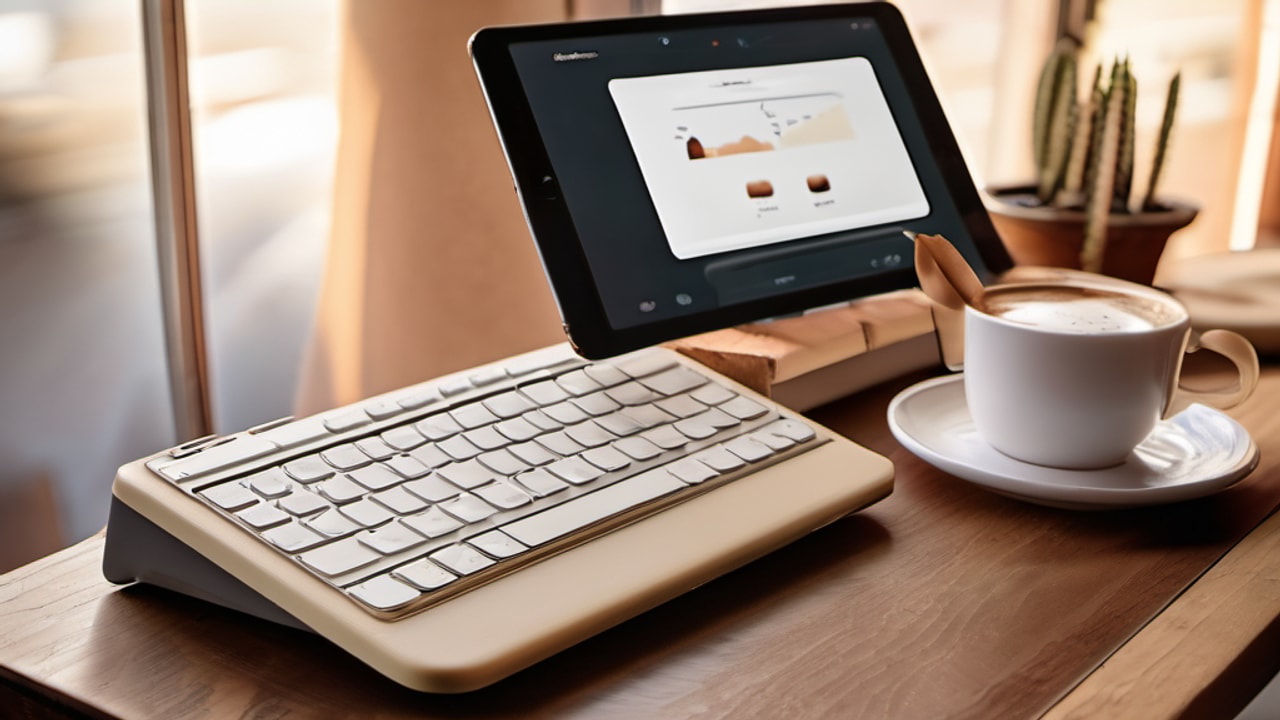
Keep a copy of the selected model and compatibility requirements with your purchase notes. Complete the app, connection, and physical-setup checks while the applicable return terms allow you to act on the result. Choose an alternative when a required condition fails instead of allowing optional features to outweigh a basic mismatch.
Related buying guides
- Best tablet keyboards: six product choices compared
- Best keyboards to attach to a tablet: fit comes first
- Best portable tablet keyboards for shared-device kits
As an Amazon Associate I earn from qualifying purchases.


Write Your Review
No reviews yet. Be the first to share your experience!